




Sensor cannot connect / App cannot find the sensor
Problem description
After applying the sensor, the BUZUD App remains in the "Searching" state for an extended period and cannot discover or connect to the sensor.
Background
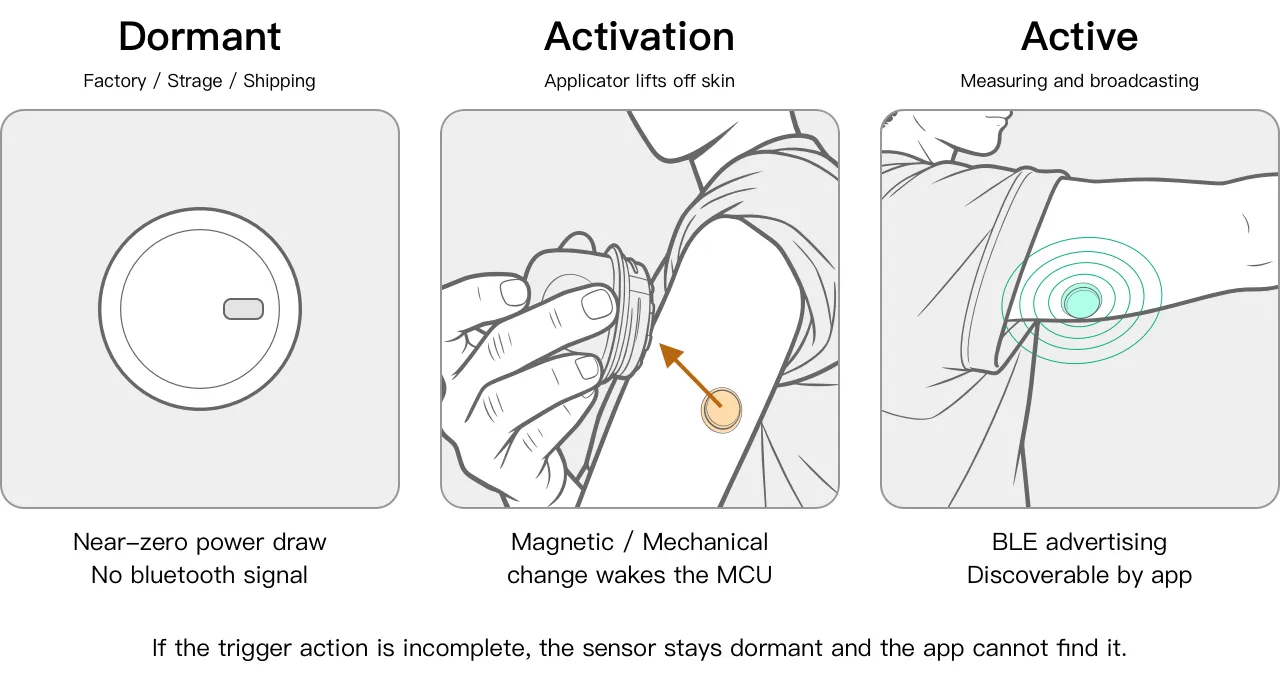
The BUZUD CGM sensor is shipped in a low-power protected state and must be activated by a trigger element inside the applicator during the moment it separates from the skin. Only after this activation does the sensor begin Bluetooth advertising. In a small number of cases, the activation may not complete fully, or the phone's Bluetooth service may behave abnormally, preventing the App from discovering the sensor.
The diagram below illustrates the three states of the sensor from factory to normal operation:
Troubleshooting steps
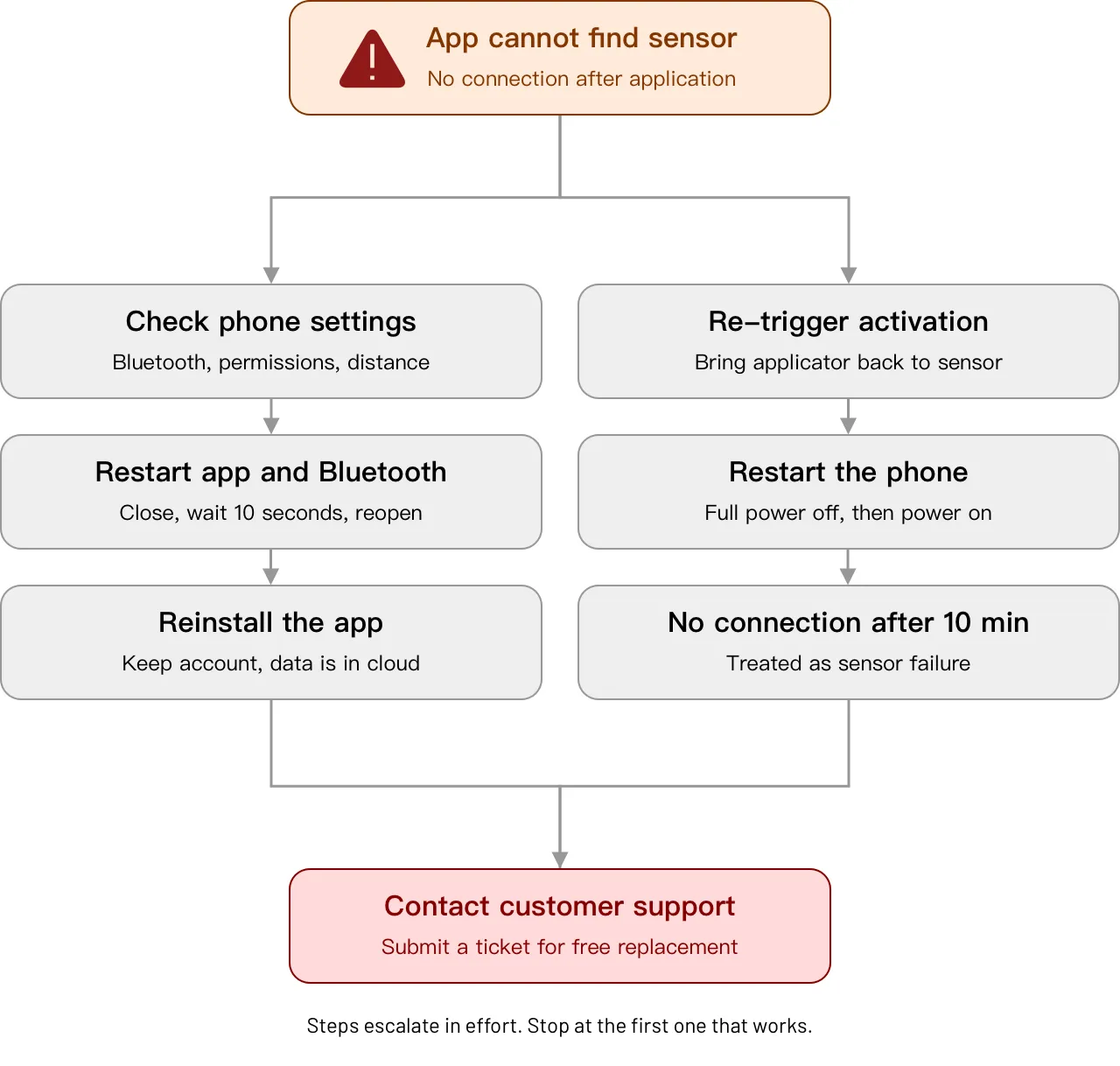
Follow the steps below in order. Stop as soon as the connection is restored — there is no need to complete every step. If none of the steps restore the connection, contact customer support.
Step 1: Verify phone settings
Confirm that all of the following conditions are met:
- Phone Bluetooth is enabled
- The BUZUD App has been granted "Nearby devices" or "Bluetooth" permission
- The distance between the phone and the sensor is within 1 meter
- No other App is occupying the connection to the same sensor model
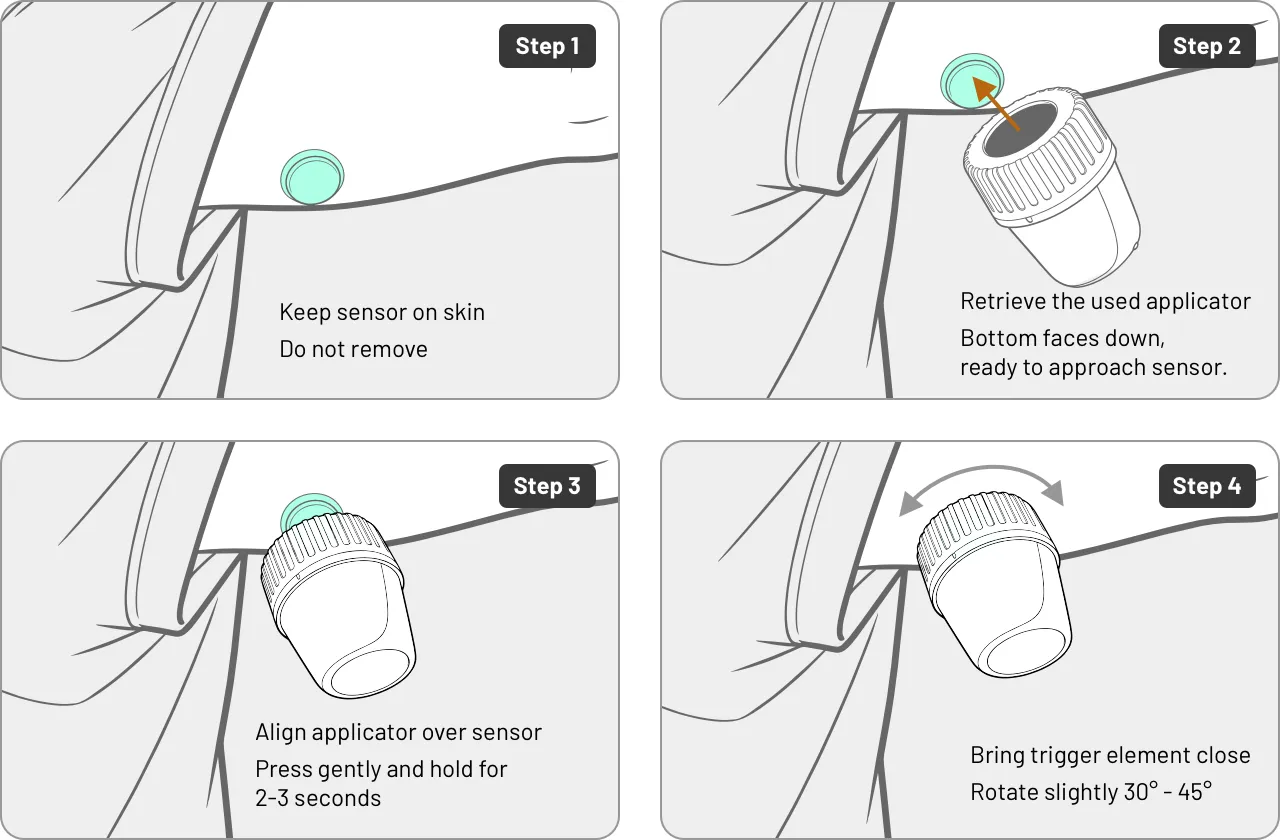
Step 2: Re-trigger sensor activation
Retrieve the applicator just used, then perform the following actions:
- Keep the sensor on the skin. Do not remove it.
- Align the circular opening at the bottom of the applicator with the applied sensor.
- Press gently and hold for 2 to 3 seconds.
- Rotate the applicator slightly by approximately 30° to 45°.
- Lift the applicator away and return to the App to search again.
Note: This action does not affect the sensor's service life or measurement accuracy.
Step 3: Restart the App and Bluetooth
- Fully close the BUZUD App from the phone's recent apps list.
- Turn off Bluetooth.
- Wait 10 seconds.
- Turn Bluetooth back on.
- Launch the BUZUD App and go to "Add sensor".
Step 4: Restart the phone
- Fully power off the phone (use "Power off", not "Restart").
- Wait 30 seconds, then power the phone back on.
- Confirm that Bluetooth is enabled.
- Launch the BUZUD App and search for the sensor again.
Step 5: Reinstall the BUZUD App
- Uninstall the currently installed BUZUD App. Do not log out or delete the account.
- Download the latest version from the App Store, Google Play, or the BUZUD official website.
- Sign in with the original account. Historical data will be restored automatically from the cloud.
- Go to "Add sensor" to search again.
Step 6: Contact customer support
If none of the steps above restore the connection, contact customer support using the procedure below. The support team will assess and assist based on the specific circumstances.
Step 6.1: Upload CGM Log
To help support locate the issue efficiently, please upload the device log before submitting a ticket:
- Open the BUZUD App.
- Go to: Me → Settings → About BUZUD.
- Tap "Upload CGM Log".
- Wait for the "Upload successful" confirmation before proceeding.
The log does not contain any personal health data. It includes only technical information such as device operating status and Bluetooth connection records, used for diagnostics by the support team.
Step 6.2: Submit a ticket
Entry point: BUZUD App → Me → Customer support → Submit a ticket
Information required in the ticket:
| Field | Description |
|---|---|
| Sensor serial number (SN) | Printed on the sensor's outer packaging |
| Application time | Accurate to the minute |
| Phone model and OS version | e.g. iPhone 15 Pro / iOS 18.2 |
| Troubleshooting steps performed | List the step numbers already attempted |
| Symptom description | Briefly describe the App's on-screen prompt and how long it persisted |
| CGM Log upload time | Fill in after completing Step 6.1 |
Precautions
- Once removed, the sensor cannot be reapplied. Reapplying the sensor will invalidate measurement data and is not covered under warranty.
- Do not press or pry the sensor with sharp objects.
- The applicator is a single-use product. Do not reuse it.
- Do not disassemble the sensor or the applicator.
- Do not attempt to self-diagnose the device's status. If there is any doubt about the device's operating condition, contact customer support.